
Uploading your own documents to the BizUpUSA dashboard is a great way to keep all your business files organized in one place. Follow the steps below to securely upload and manage your documents.
Steps to Upload Documents
-
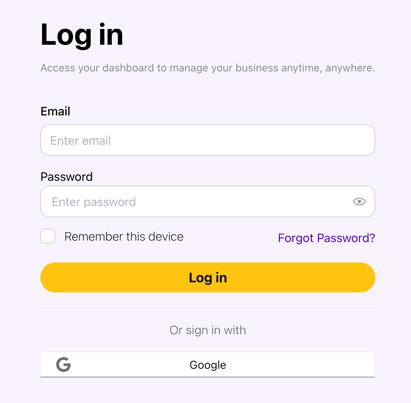
Log into Your BizUpUSA Account
-
Use your registered email and password to access your dashboard.
-
-
Navigate to the Documents Section
-
Click on "Documents" in the left-hand menu.
-
This will take you to your document storage area.
-
-
-
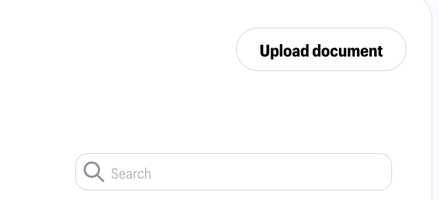
Click "Upload Documents"
-
Locate the "Upload Documents" button in the upper-right corner of the page.
-
Click the button to open the upload window.
-
-
Select Your File
-
Choose the file you want to upload from your device.
-
Supported file types include PDF, DOCX, JPG, and PNG.
-
Ensure the file size is under 10MB.
-
-
Choose a Folder
-
Select an existing folder to store your document (e.g., "Compliance," "Uploaded Files") or create a new folder.
-
Organizing your files by category makes them easier to find later.
-
-
Click "Upload"
-
Once you’ve selected the file and folder, click "Upload" to add the document to your dashboard.
-
You’ll see a confirmation message once the upload is complete.
-
Common Questions
Can I upload multiple files at once?
-
Yes, you can select and upload multiple files in a single session. Ensure each file meets the size and format requirements.
What happens if I upload the wrong file?
-
You can delete any document you’ve uploaded by navigating to the file, clicking the options menu (three dots), and selecting "Delete."
Are my uploaded documents secure?
-
Yes, all files are encrypted and accessible only to authorized users on your account.
Can I share uploaded documents with team members?
-
Yes, you can grant document access to team members by adding them as authorized users in your account settings.
Still need help? Contact Customer Success at help@bizupusa.com or chat with Astra, your AI assistant, directly from your dashboard.