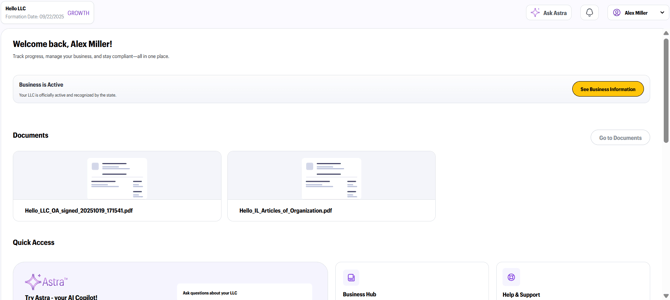
The BizUpUSA business dashboard brings all your essential business functions into one integrated, platform, giving you visibility into filings, documents, deadlines, and growth tools. It serves as a central command center, providing clarity and control over your company's formation, compliance, and growth. The entire experience is personalized to your business type, state, and current progress.
How to Log In to Your Dashboard
-
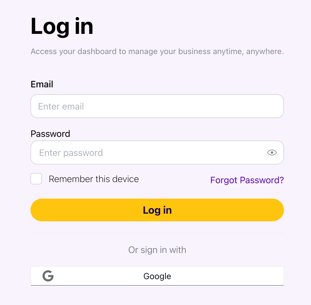
Go to https://app.bizupusa.com/ to access the sign-in page
-
Enter the email address and password you used to create your account and click “Log in”
Key Dashboard Features
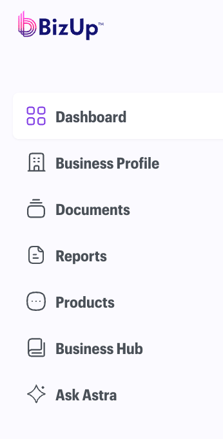
On the left-hand side of your screen, you will find a menu to easily navigate your dashboard: Business Profile, Documents, Reports, Products, Business Hub, and Ask Astra.
Dashboard - Your Command Central
You will automatically be directed to your Dashboard’s main page once you log in. From here, you can view your documents, access the Business Hub, view the status of all products, and access help and support.
One of the most valuable features of the platform is the real-time status tracker. To track the status of a filing, visit the dashboard and scroll down to the “Products” section and select the “Explore All” button. Automatic updates are highlighted to the right of products as your filing moves through each stage—from submission to approval.
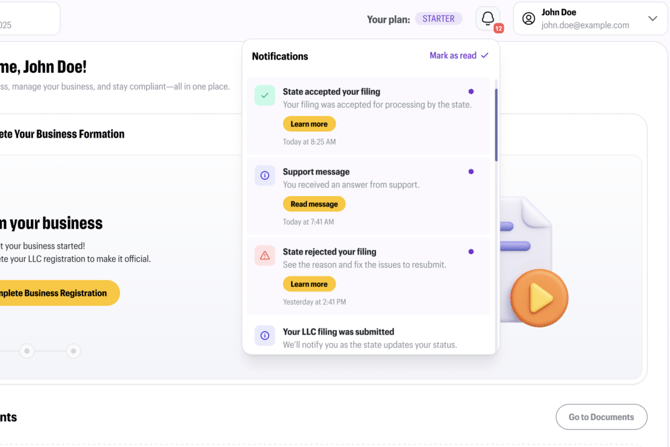
Dashboard Notifications
The platform monitors deadlines for annual reports, renewals, and other required filings through Dashboard notifications. Click on “Notifications” in the far right of the upper navigation to view automatic alerts and reminders before anything is due, giving you time to take action.
Add Products to Your Plan
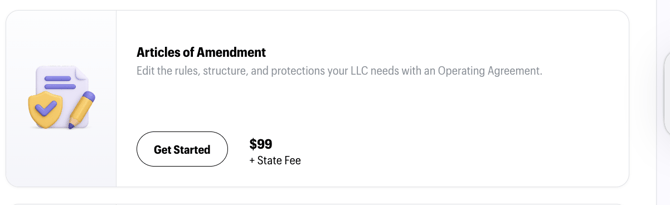
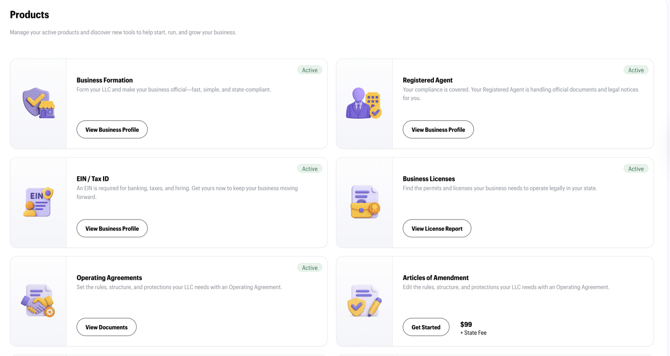
The dashboard allows you to add new services and tools without ever leaving the platform. Click “Products” to view all active products or add additional tools. In this example, Articles of Amendment was not purchased initially. By selecting “Get Started,” a purchase pop-up will appear to provide more information, including the option to add it to your plan.
.png?width=670&height=491&name=10f22799-b94c-4eb8-acdc-8b5cdc43fd40%20(1).png)
Business Profile
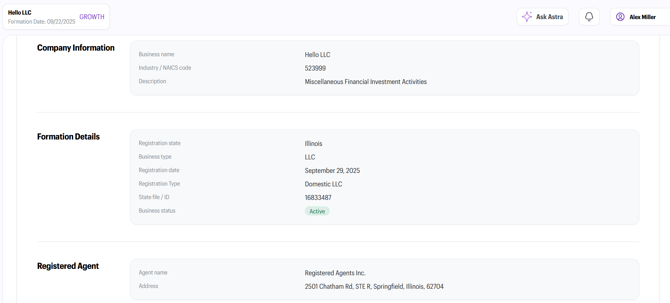
The Business Profile is a read-only view of your business information, such as company name, formation details, registered agent information, EIN, structure & ownership, contact & communication, and location. The status of formation details and EIN is also included, allowing you to stay informed and organized.
These details cannot be changed as they are specific to your LLC. Most changes require a formal amendment with the state.
Documents
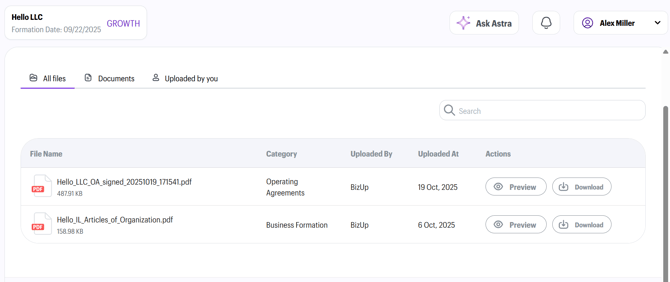
The dashboard serves as a secure digital vault for all your important paperwork. You can access key files with a single click, anytime you need them.
Documents stored in your dashboard include:
-
Articles of Organization
-
EIN confirmation letter
-
Operating Agreement
-
And other formation documents
-
LLC Formation documents
You even have the ability to add your own documents by clicking “Upload document” in the upper right-hand corner. Everything is securely stored and available 24/7, so you never have to dig through email attachments or paper files again.
Reports
On the Reports page, you can view and manage your Business License and Permit Report. Select “Preview” to view Federal, State, County, and Local License details.

Products
The Products page houses all nine BizUpUSA products. For purchased products, the status of each is highlighted — active products display a green “active” label while products that are pending are tagged in purple and labeled as “in progress.” In addition to managing your existing products, this page also includes suggestions for new tools to help grow your business and the option to add additional products to your plan.
Business Hub
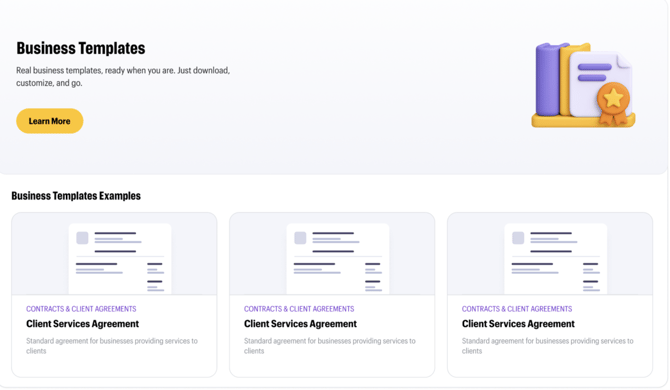
The Business Hub includes a collection of valuable resources such as small business templates, guides, and articles—all in one spot and ready when you are. Some plans also include Business Templates, a library of professionally drafted documents you can download, customize, and use within minutes. Articles and guides are also available that provide expert insights to help you stay ahead.
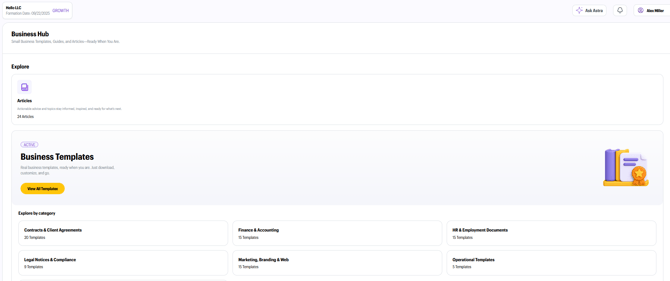
If you have the Starter plan and want to add Business Templates, visit the Products page, scroll down to “Business Templates.” You will see all products listed, both active and inactive. Select “Learn More” or “Get Started” in boxes that are not active to view options to add to your plan.
You can also click “Business Hub” and select “Learn More” see what additional templates can be added.
Meet Astra, Your AI Copilot
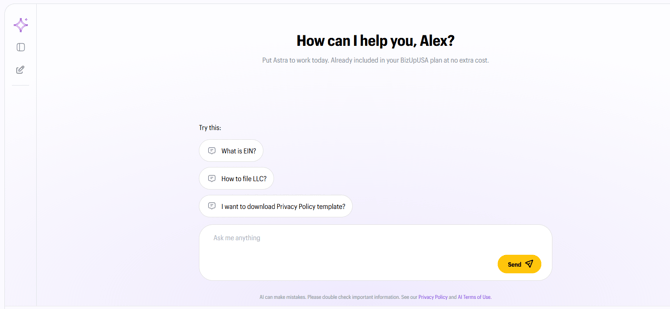
To provide even more support, the dashboard includes Astra, a built-in AI Copilot. Think of Astra as an on-demand co-founder who can help you navigate complex decisions. By analyzing your business profile, industry, and goals, Astra offers personalized insights and recommends your next steps.
Account Management
To access important account management information, hover over your name in the upper right-hand corner and select either settings or orders.
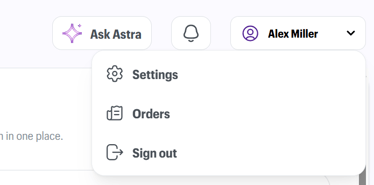
Settings
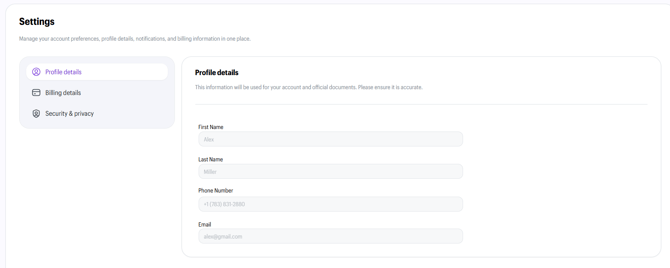
Within the Settings page, you can view and update profile details, email notifications, billing details, and security settings.
Profile Details
Select “Profile Details” to view important information used for your account and official documents (it’s very important that these are all accurate). If an update is needed, please reach out to us via Astra or email our Customer Success Team.
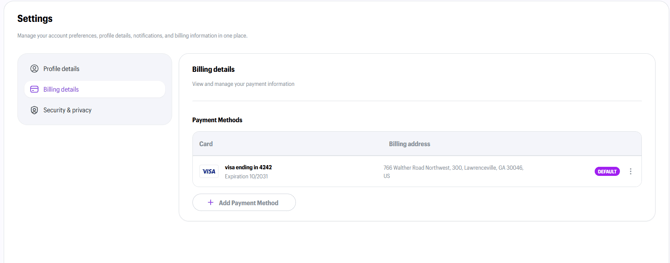
Billing Details
You can add/update payment information by clicking your name in the upper left-hand corner. Select “Settings > Billing” to add/update payment details.
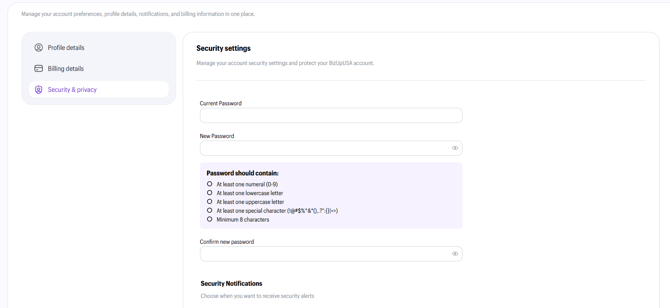
Security & Privacy
BizUpUSA takes our customers' privacy seriously. Users can only update email addresses by contacting the Customer Success Team. Passwords can be updated within your dashboard by clicking your name in the upper left-hand corner. Select “Settings > Security & Privacy” to update passwords.
Orders
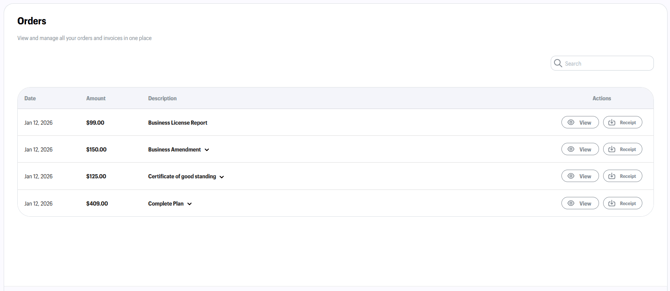
Visit the “Orders” page to view and manage all your orders and invoices in one place. You can select “View” to preview an order or download a receipt. The date, order amount, and description of what you ordered are all displayed here.