
If you're experiencing difficulties with your Operating Agreement, follow the steps below to resolve common issues and ensure your document is signed correctly.
Troubleshooting Common Issues
1. I’m unable to open the document
-
Ensure you have a PDF reader installed on your device (e.g., Adobe Acrobat Reader).
-
If the file won’t open, try downloading it again from your BizUpUSA dashboard:
-
Log into your BizUpUSA account.
-
Navigate to the "Documents" section in the left-hand menu.
-
Locate your Operating Agreement and click "Download."
-
2. I received an error while signing
-
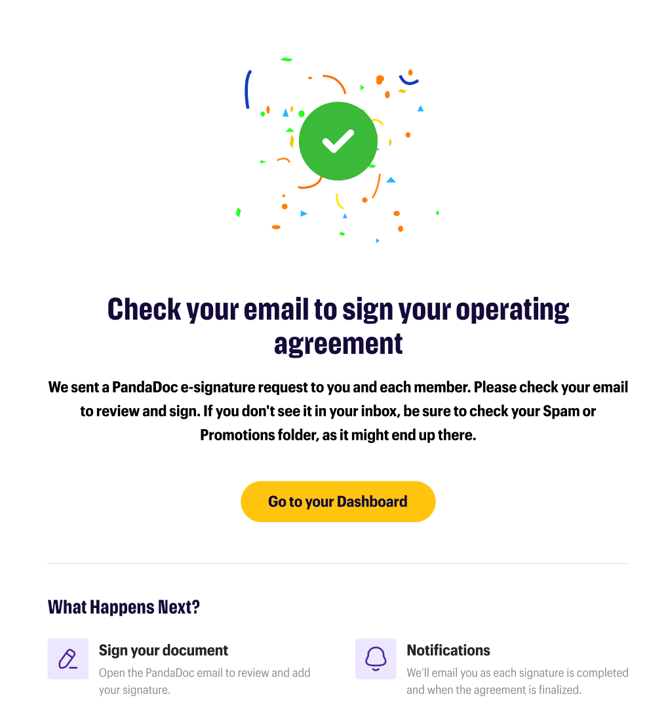
Confirm you’re using the correct e-signature tool. BizUpUSA will send a PandaDoc link via email for members to sign.
-
If the signature field isn’t working:
-
Refresh your browser or reopen the document.
-
Ensure your browser is up to date.
-
Try signing on a different device.
-
3. I see incorrect information in the Operating Agreement
-
If you notice errors in your Operating Agreement (e.g., incorrect business name or member details), contact Customer Success immediately:
-
Email: help@bizupusa.com
-
Chat: Use the Astra AI assistant in your dashboard.
-
4. The Operating Agreement won’t upload after signing
-
Ensure the file size is under 10MB and in a supported format (PDF, DOCX, JPG, or PNG).
-
To upload:
-
Go to the "Documents" section in your dashboard.
-
Click "Upload Documents" in the upper-right corner.
-
Select the signed Operating Agreement and click "Upload."
-

Additional Support
If the above steps don’t resolve your issue, reach out to Customer Success for personalized assistance. Provide the following details to expedite your request:
-
Your business name and account email.
-
A description of the issue.
-
Screenshots or error messages, if applicable.
Still need help? Contact Customer Success at help@bizupusa.com or chat with Astra, your AI assistant, directly from your dashboard.